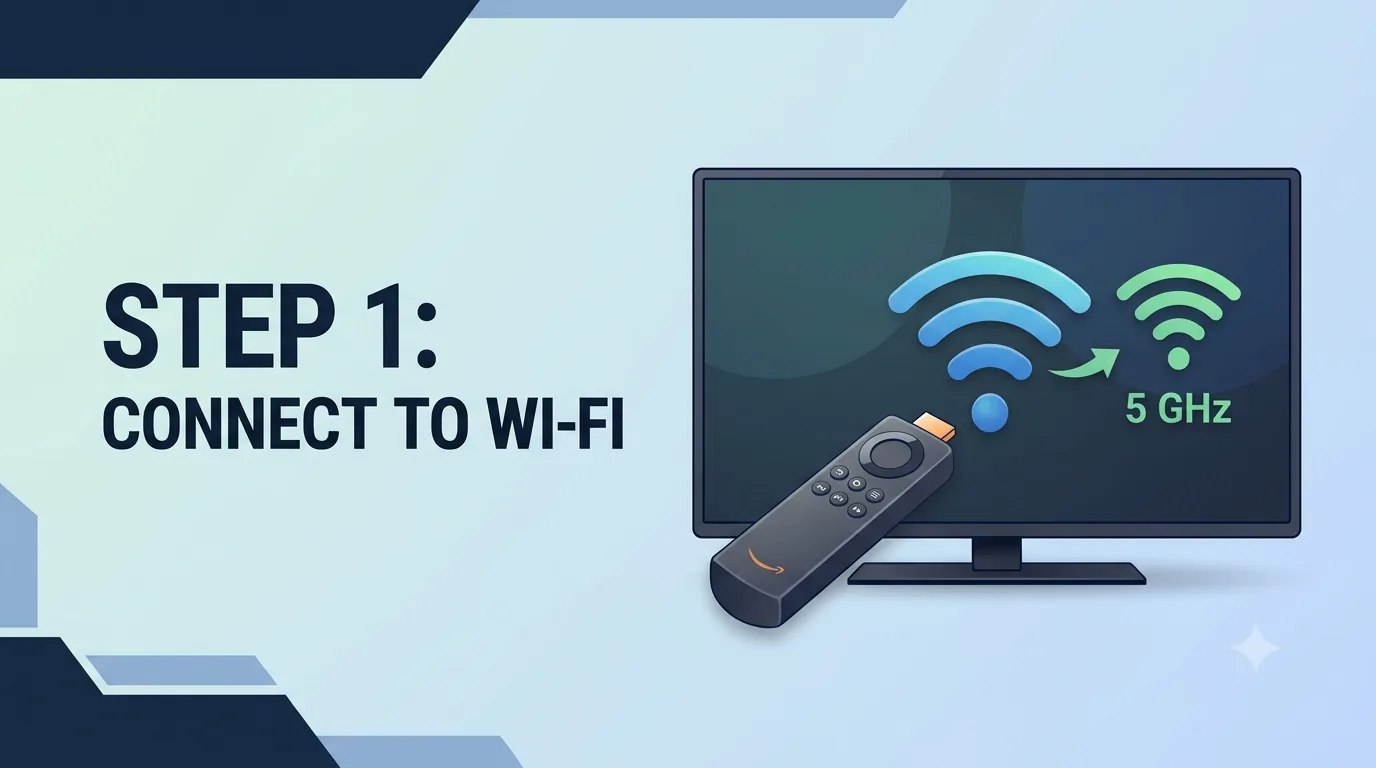
1
Turn on Fire Stick and connect to Wi-Fi
Use a stable Wi-Fi network. A 5 GHz network is usually better for streaming.

Follow simple step-by-step instructions to set up your IPTV subscription on any device.
Main Guide
Follow these steps in order. Replace the example URLs with the details sent after activation.
If Developer Options are hidden
Copy-ready examples
These are placeholders. Use the real server URL, username, password, and app URL from your activation message.
Server URL: http://your-server.example | Username: USER | Password: PASS
Use a stable Wi-Fi network. A 5 GHz network is usually better for streaming.
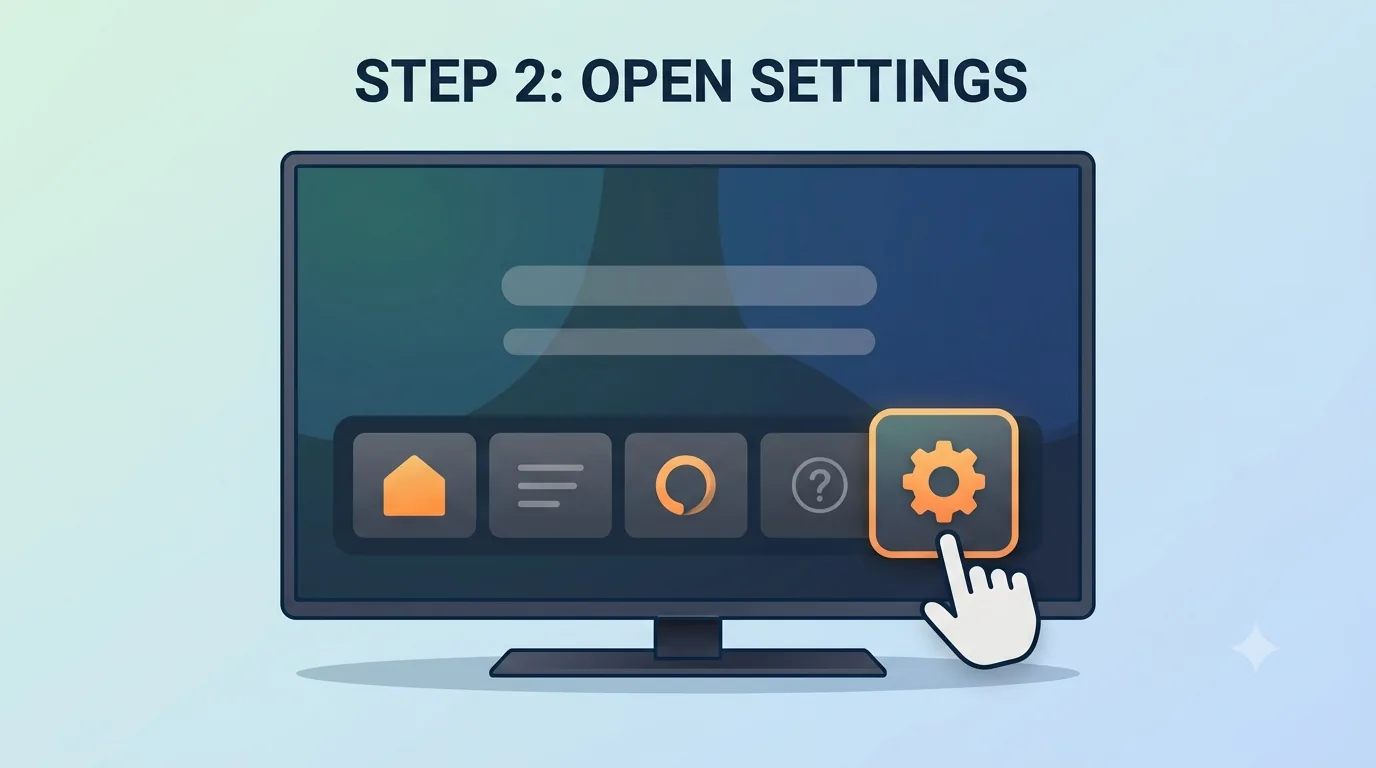
From the Fire Stick home screen, select the gear icon.
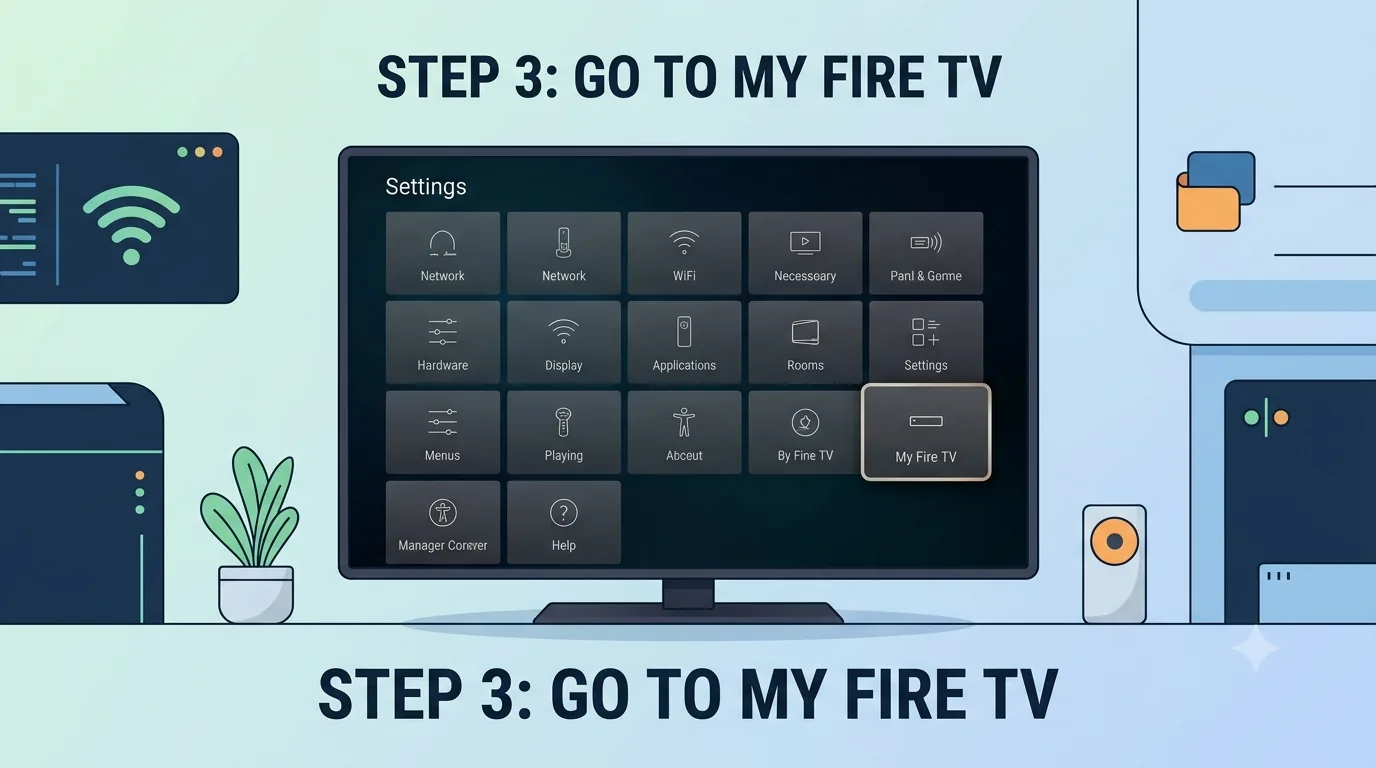
Inside Settings, open My Fire TV.
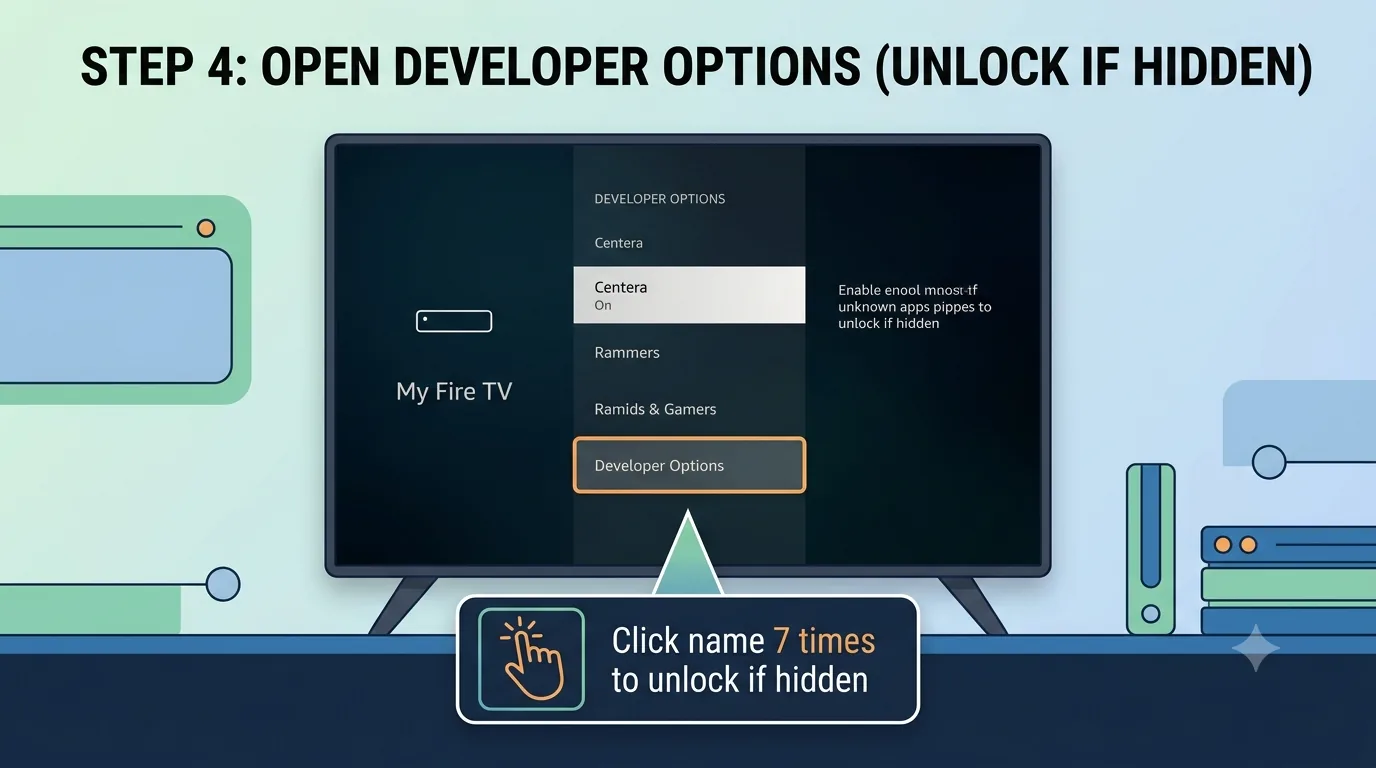
Select Developer Options. If it is hidden, use the note above to unlock it.
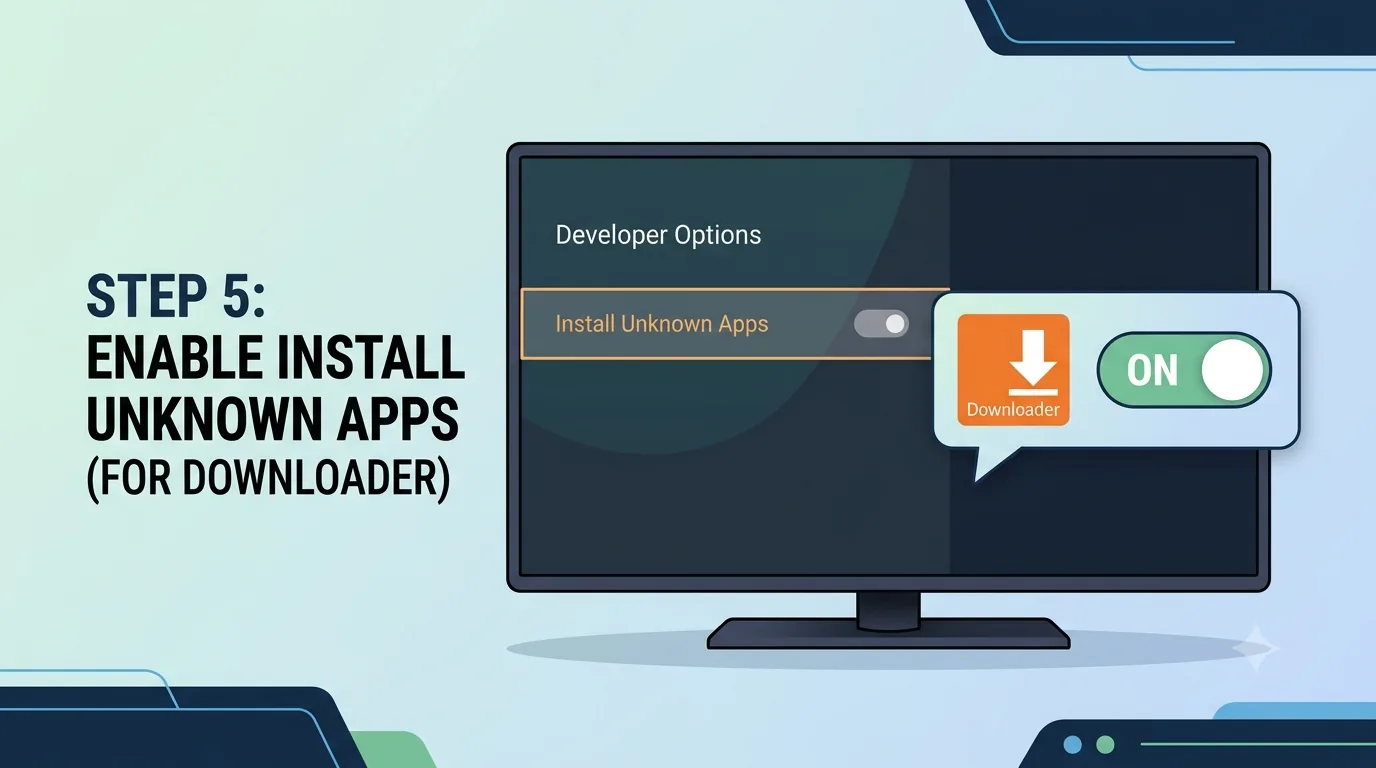
Turn on Apps from Unknown Sources or allow Downloader under Install Unknown Apps.
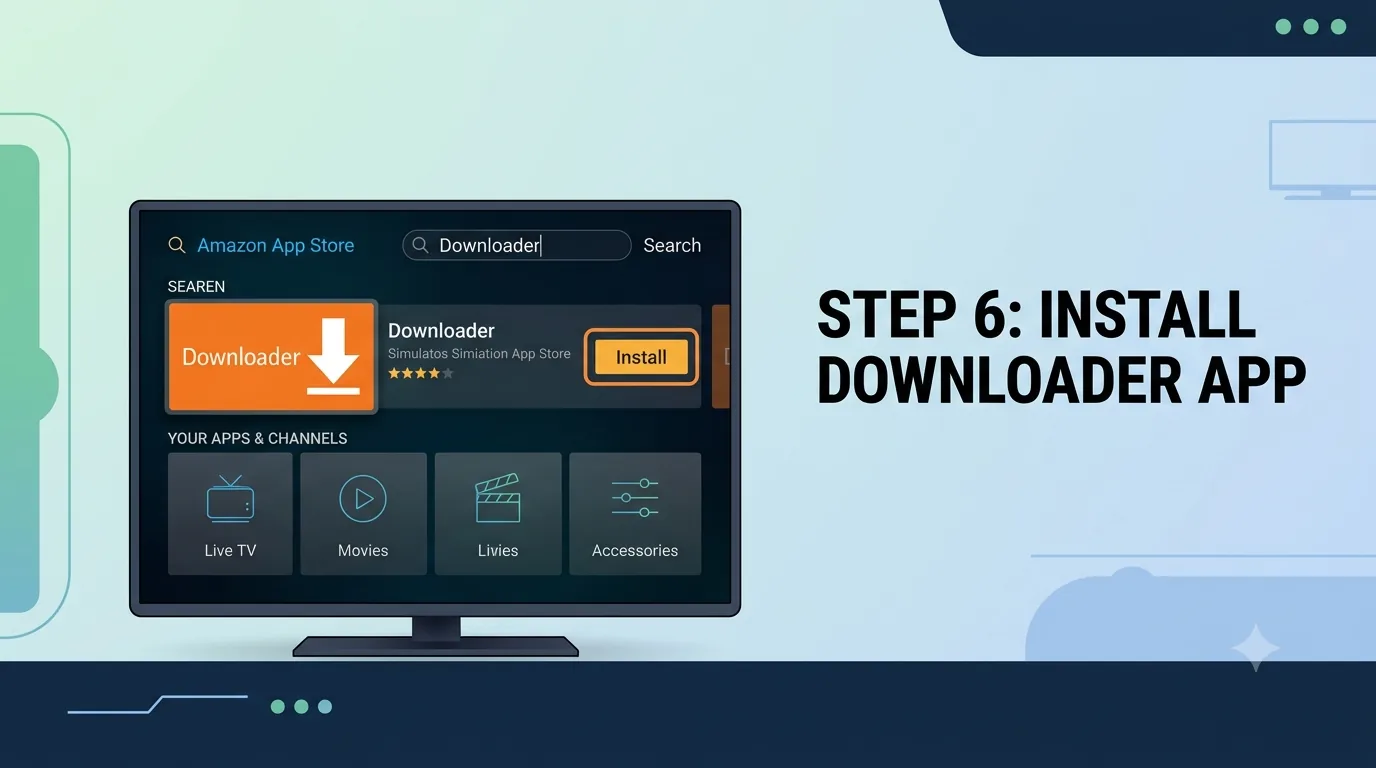
Open the Amazon App Store, search Downloader, and install it.
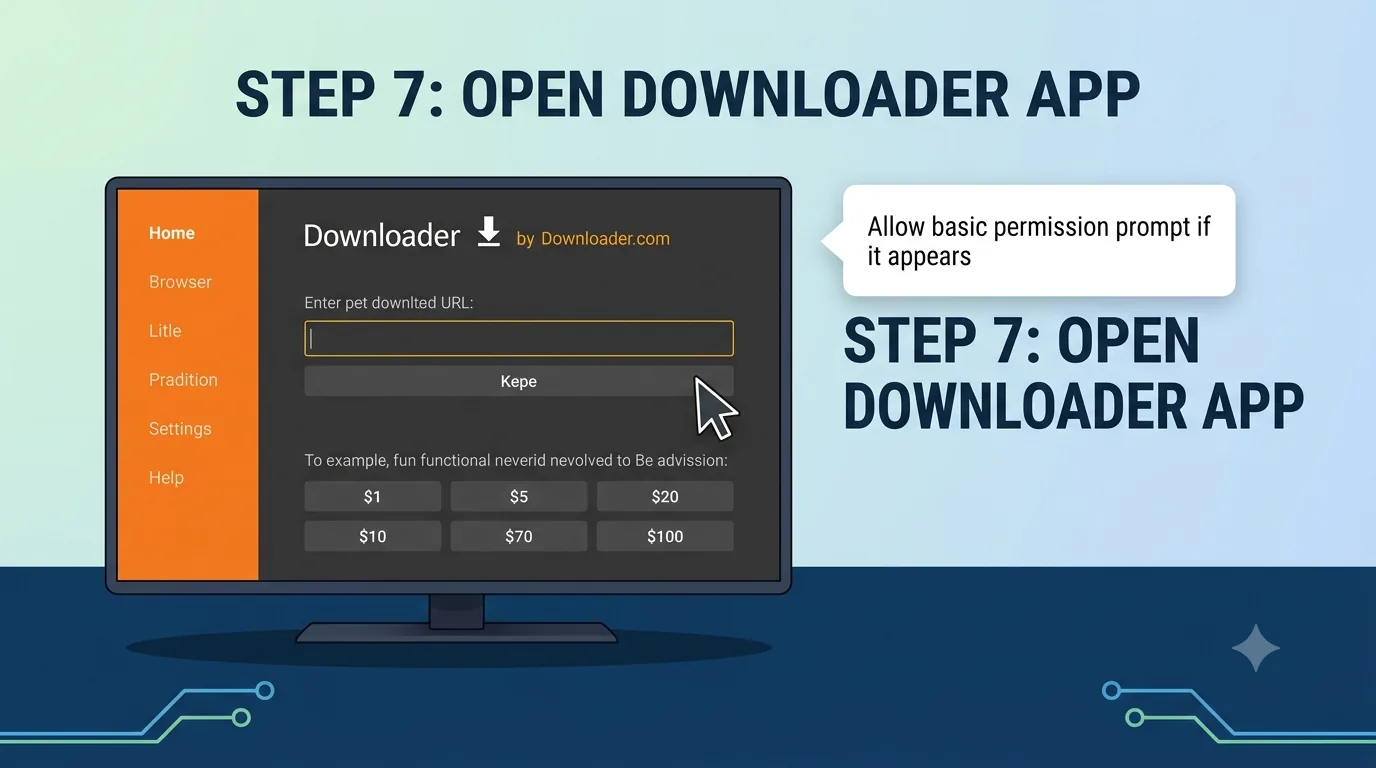
Launch Downloader and allow the basic permission prompt if it appears.
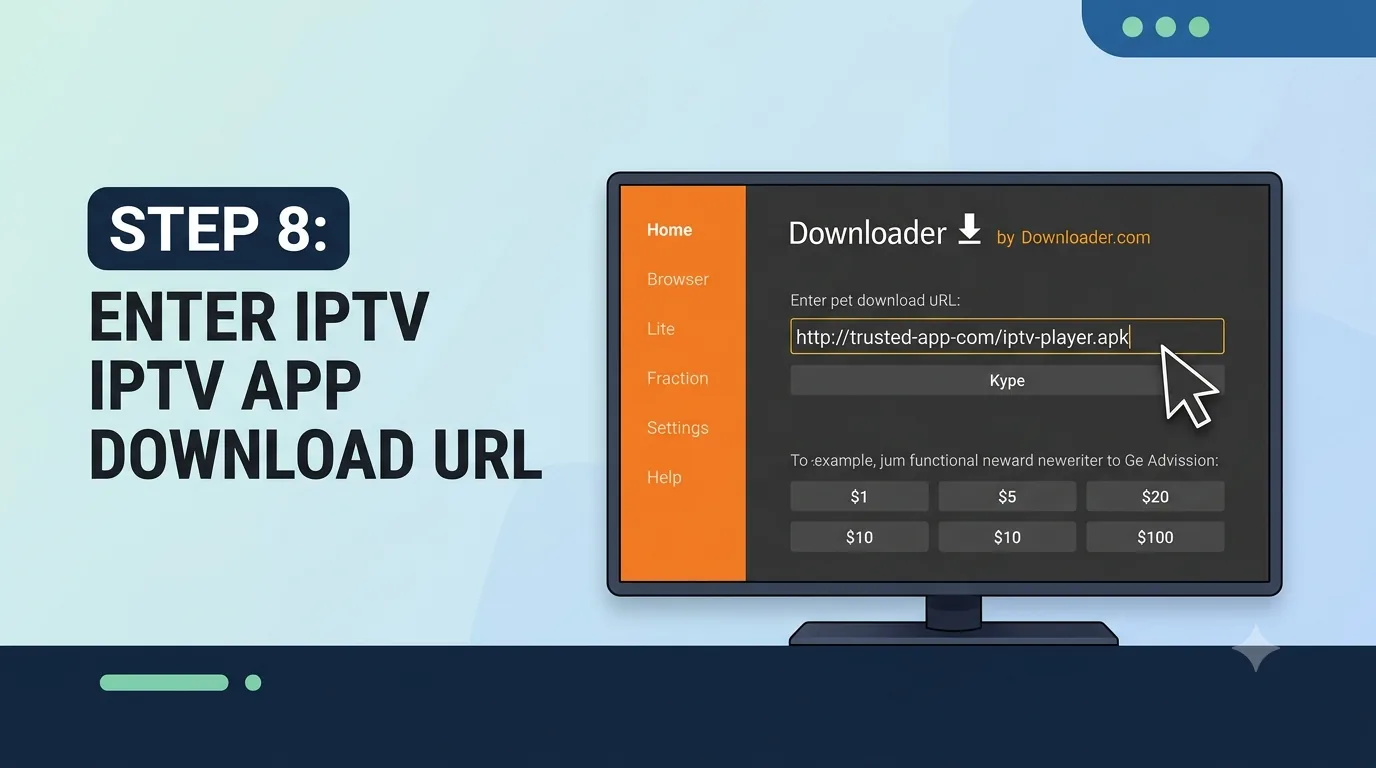
Type your IPTV app download URL in Downloader. Use only a trusted URL you control.
https://example.com/iptv-player.apk
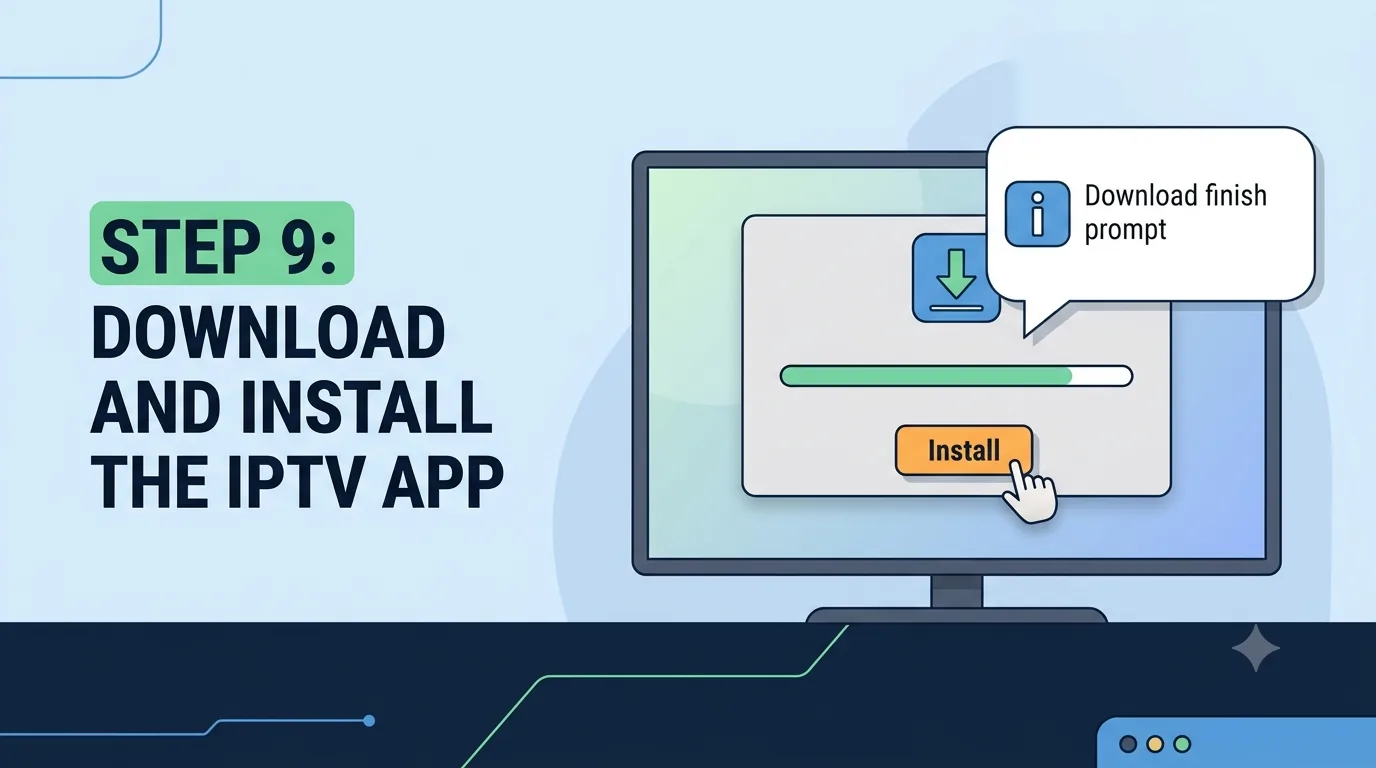
Wait for the download to finish, then choose Install.
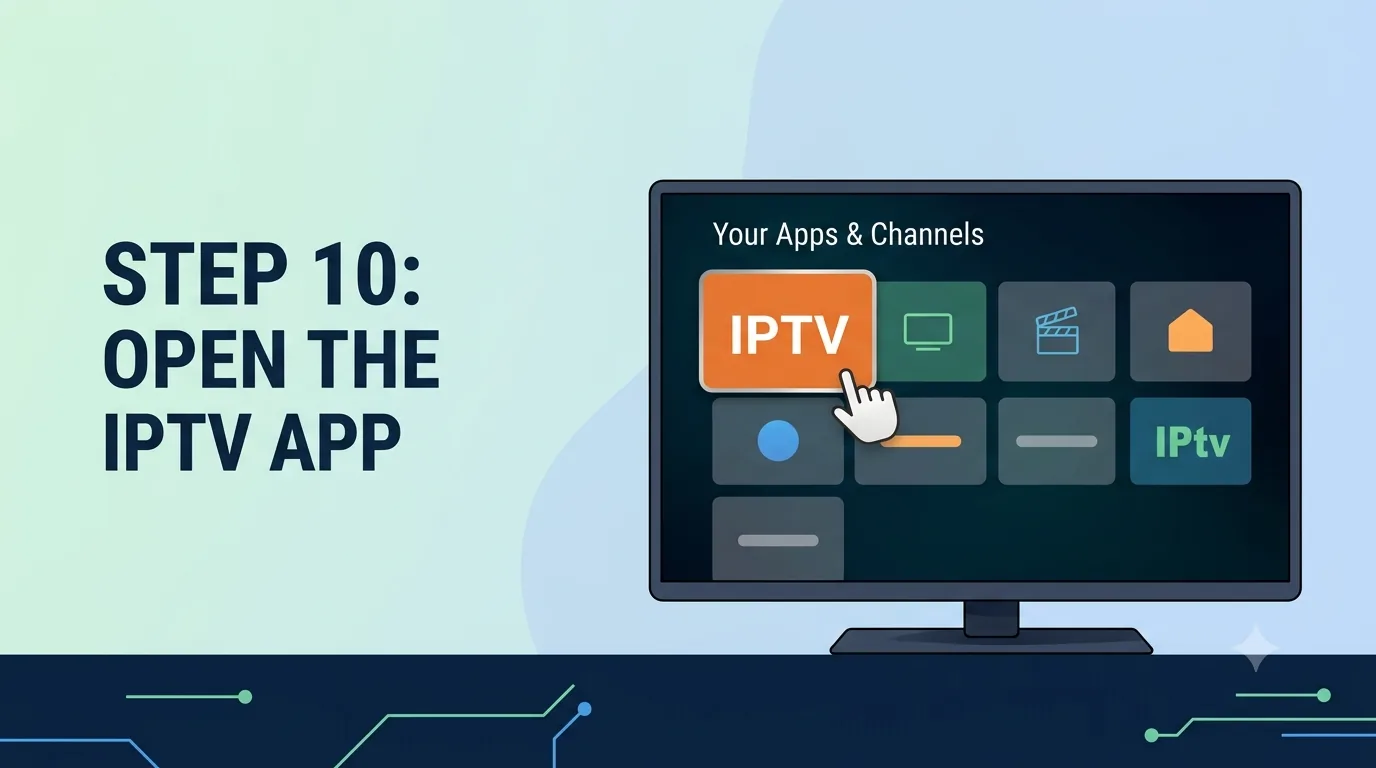
After installation, open the app from the Fire Stick apps menu.
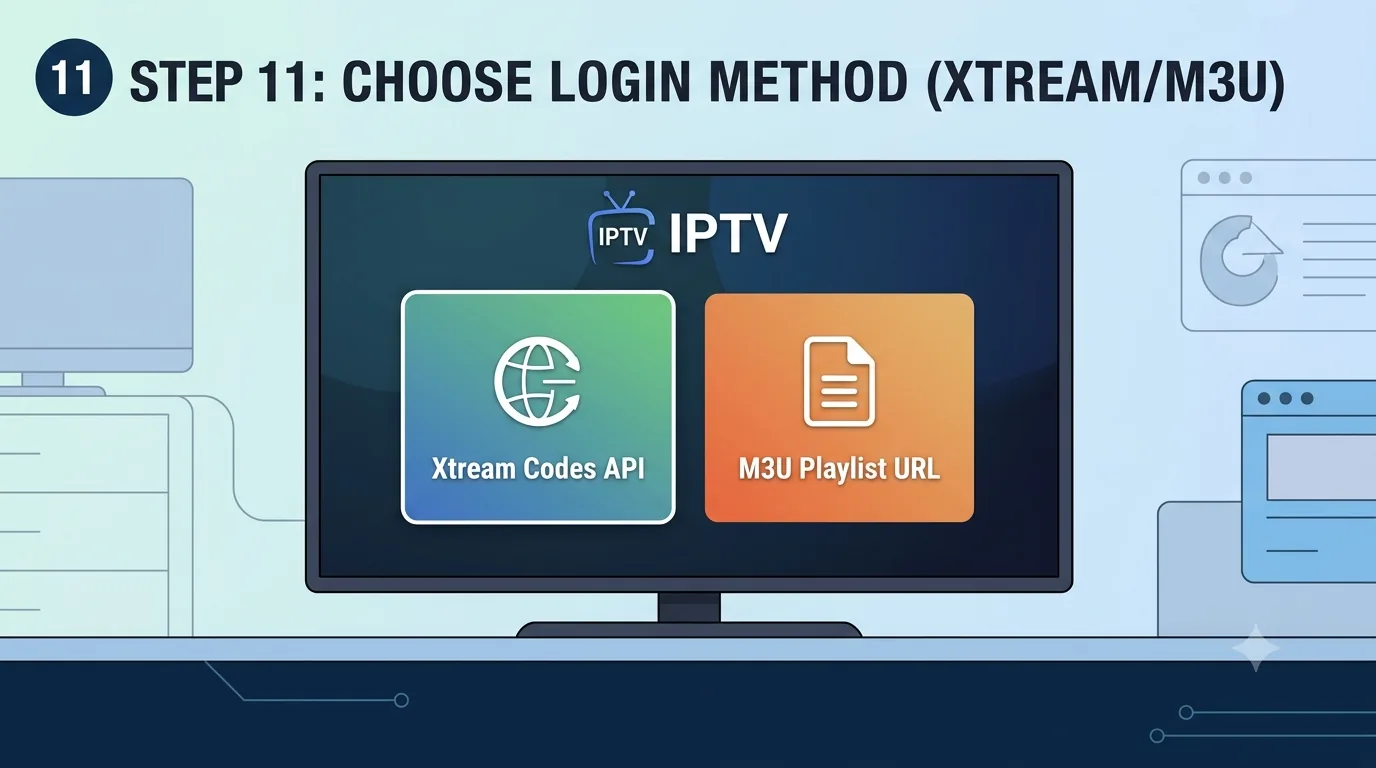
Choose Xtream Codes API when available. Use M3U Playlist URL if your app asks for one link.
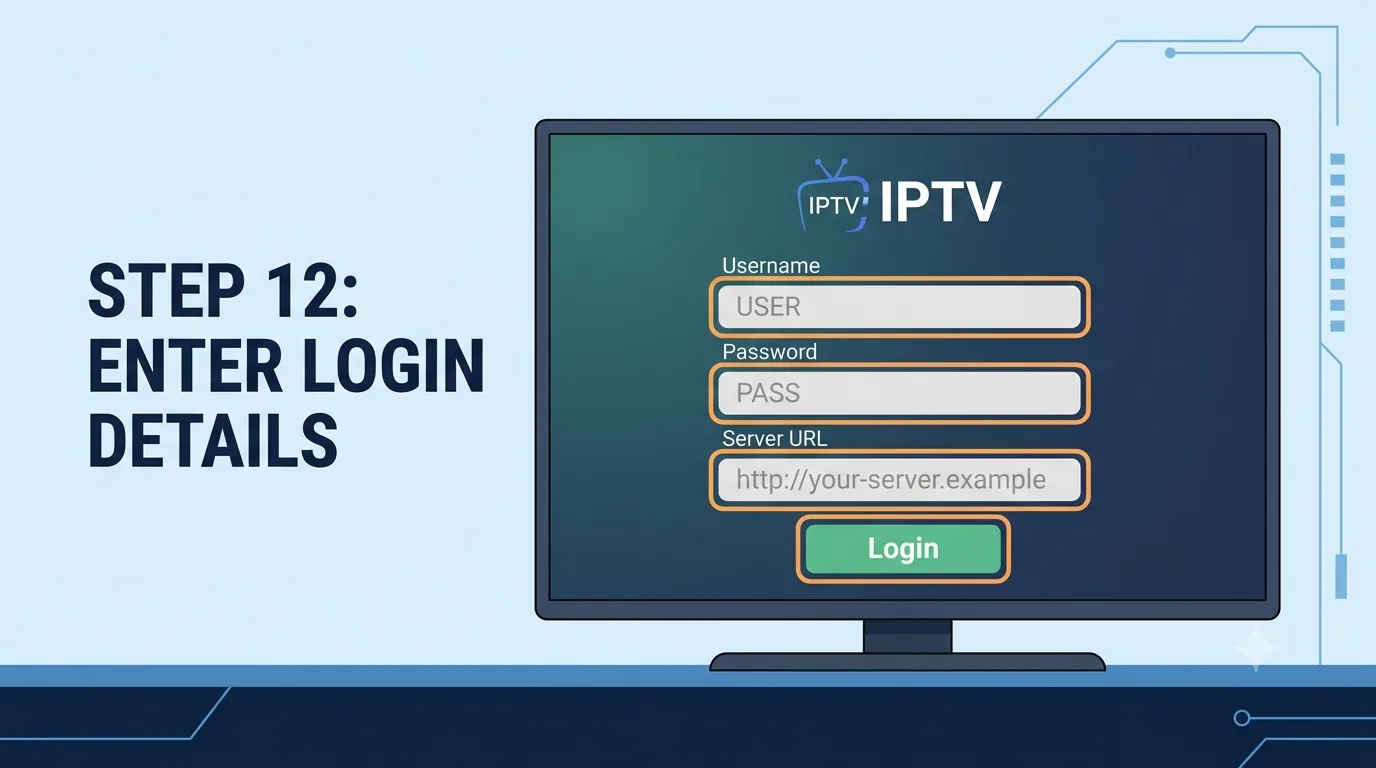
Enter username, password, server URL, or paste the playlist URL exactly as received.
http://your-server.example/get.php?username=USER&password=PASS&type=m3u_plus&output=ts
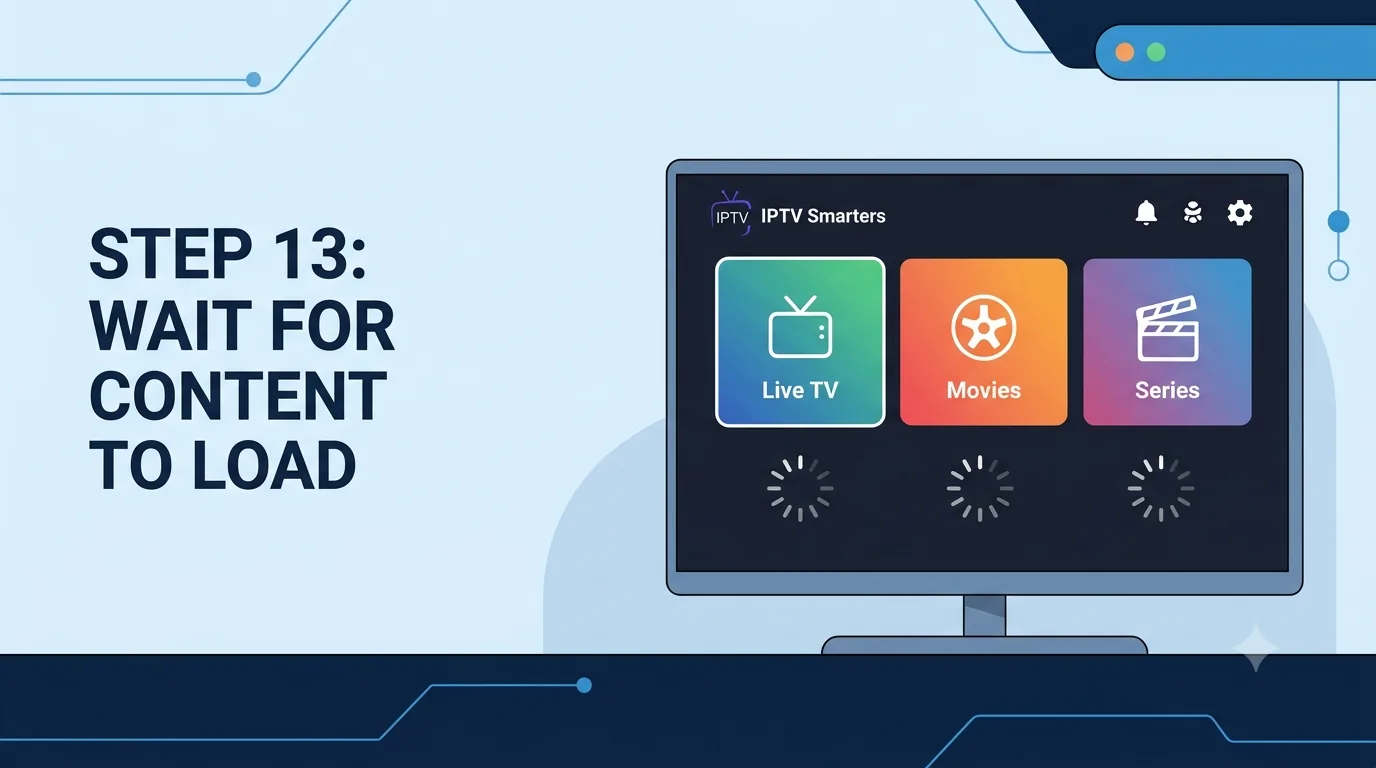
Let live channels, movies, and series finish loading before closing the app.
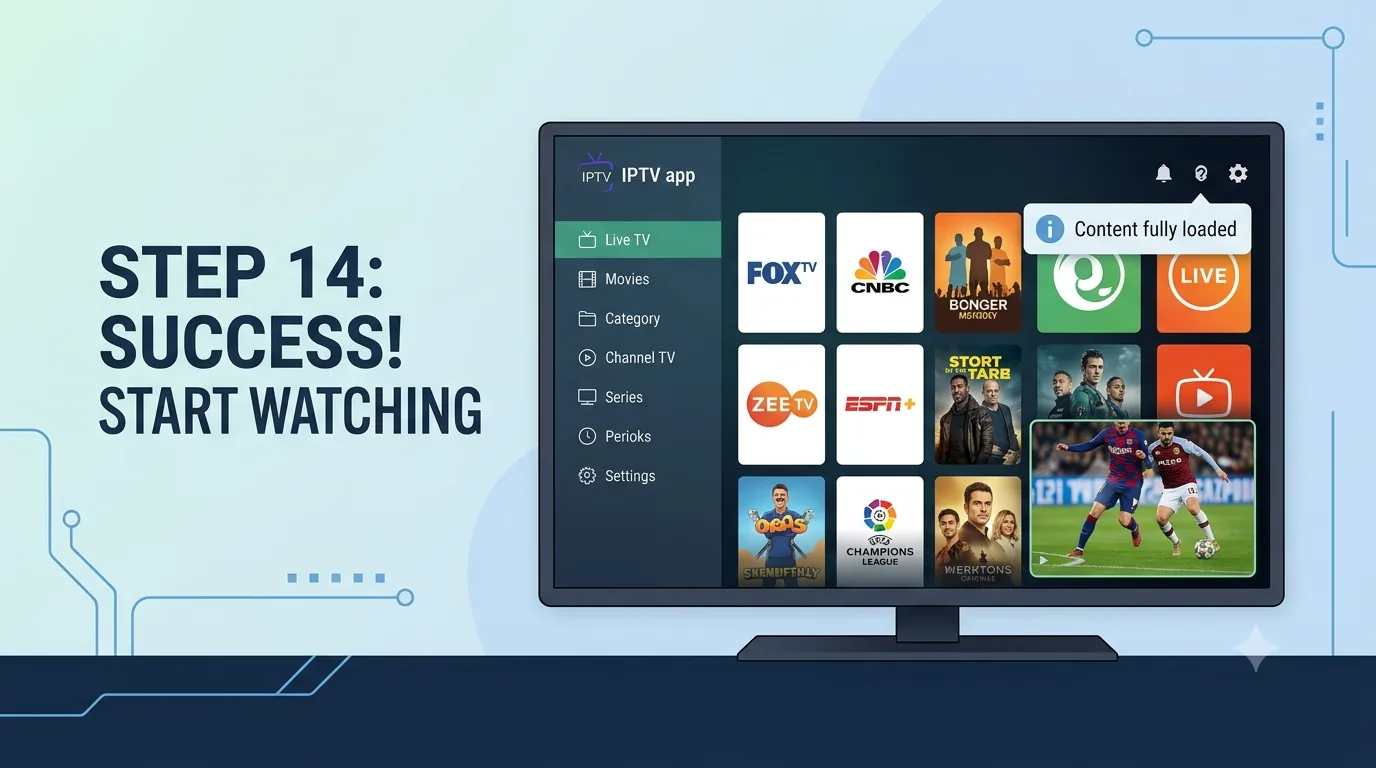
Open a live channel first, then test movies or series. If something is empty, refresh the playlist inside the app.
FAQ
Quick answers to the questions customers ask most.
IPTV Smarters Pro is easier for beginners. TiviMate is better for advanced users who want more layout and playback control.
Support
Send us your device type and we will guide you step by step.